Connect your CASSY to your Wi-Fi
Step 1: Connect CASSY to a PC
Connect the CASSY to a Windows PC using a USB cable.
Step 2: Open MobileConfig on the PC
The CASSY appears on the PC as a USB drive. On the drive you find the program MobileConfig.exe. Start it by double-clicking.
Step 3: Enter Wi-Fi credentials
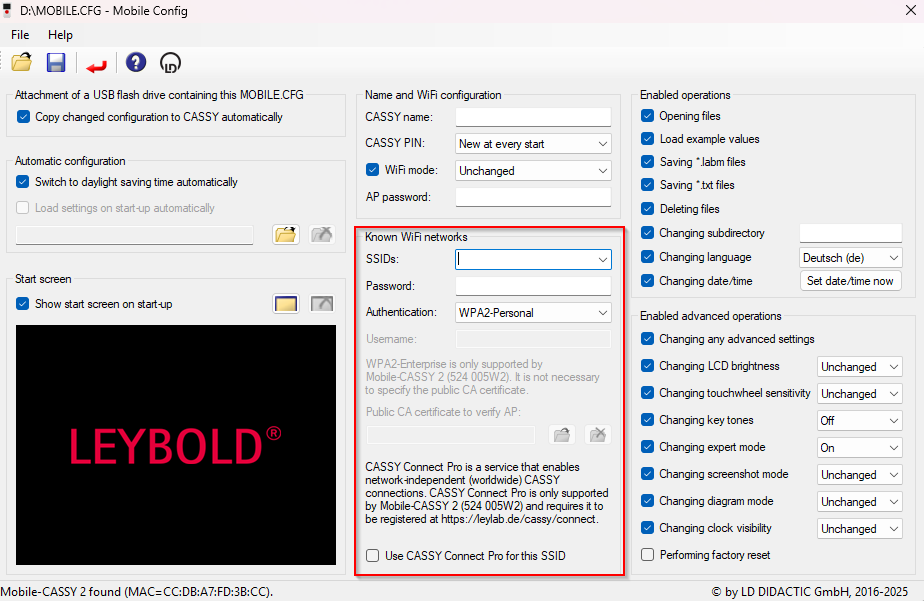
In the section Known Wi-Fi Networks enter the following information:
- SSID
- Wi-Fi network name
- Password
- Wi-Fi password
- Authentication
- For RADIUS server with username/password → select WPA2-Enterprise
You can enter multiple networks using the arrow next to SSID.
You can activate CASSY Connect Pro if local communication is blocked in your Wi-Fi or if you want to access your CASSY from any Wi-Fi / mobile network.
Register for CASSY Connect Pro in LeyLab
Step 4: Salva
Confirm your changes with the Save button  at top left. Remove the USB cable.
Step 5: Select Wi-Fi on CASSY
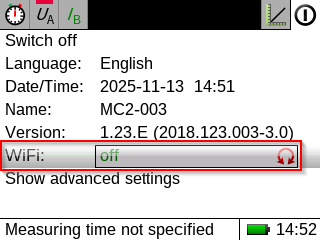
On the CASSY you choose the desired network in the settings menu (top right) under Wi-Fi.
Step 6: Test
You can check the connection with the interactive CASSY Wi-Fi Tester in LeyLab.